What This Screen Shows
The Topology tab is a map of how your smart home is actually connected: your Thread mesh (border routers, routers, and end devices, with the measured connections between them), the Zigbee network Home Assistant runs, and your HomeKit bridges with the accessories behind them.
The map only draws connections it has measured. Nothing is guessed.
Thread devices paired to Home Assistant are on the map too, with their border routers and connections. Home Assistant shares that mesh only with an administrator account; see Getting more from Home Assistant for what it needs. Zigbee devices on Home Assistant's built-in Zigbee integration (ZHA) get boxes of their own, described under Zigbee Network Boxes below. Zigbee2MQTT and Z-Wave networks aren't mapped.
Topology is a Pro feature. The data comes from a scan with Thread Topology Scan enabled in Settings > Discovery (on by default for Pro). Mapping your Apple Home Thread devices also needs IP Network on: their border routers (HomePods, Apple TVs) are only found through IP Network discovery, so without it the map loses them. Home Assistant's Thread devices are mapped either way.
The map shows the Place picked in the Place menu in the toolbar, the same as the Devices and Rooms tabs. Switching a home off in that menu narrows the map further. See Places.
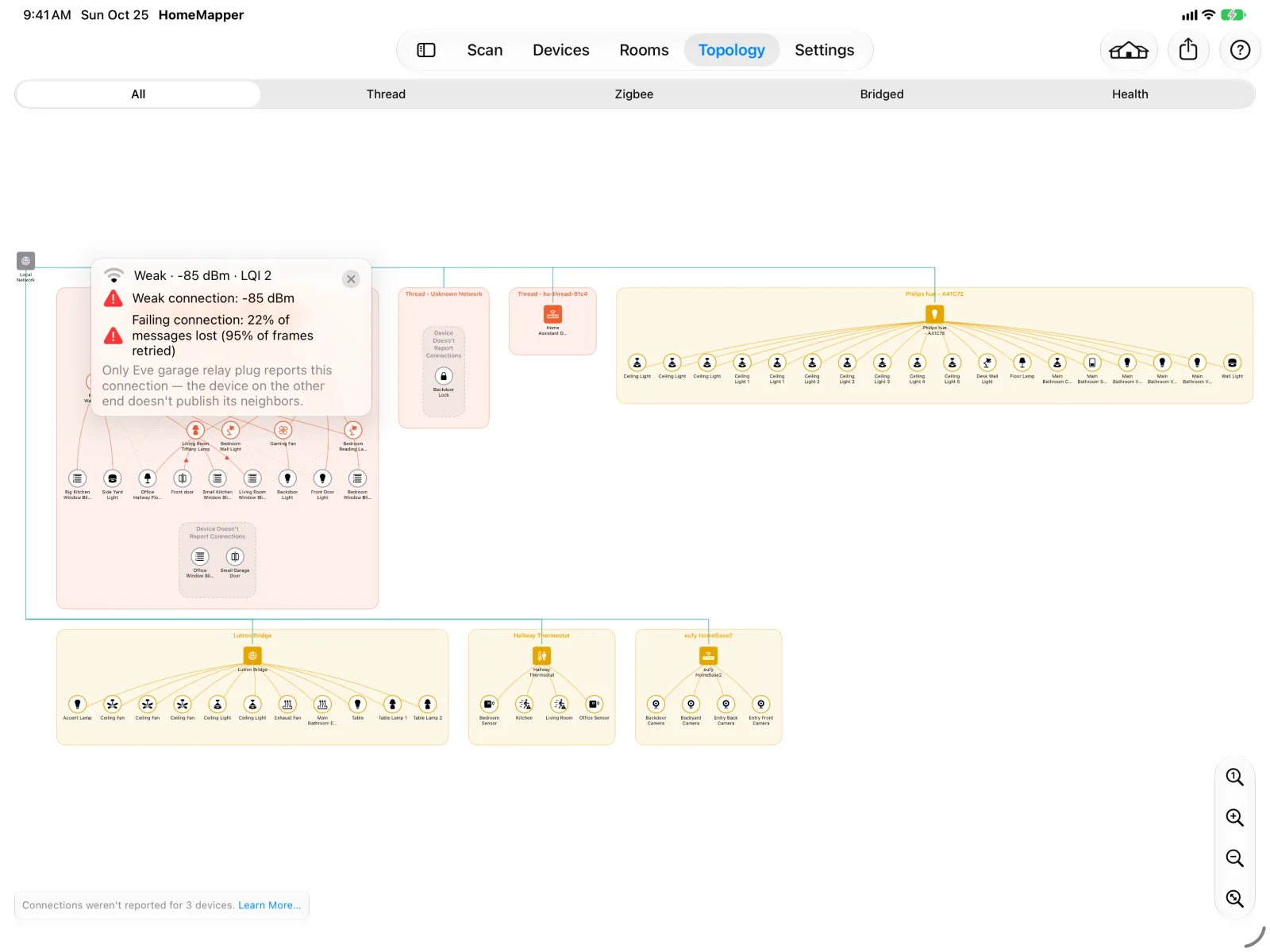
All, Thread, Zigbee, Bridged, and Health
The segmented control at the top picks what the tab shows:
- All: everything, every Thread network box, every Zigbee network box, and every bridge box
- Thread: just the Thread network boxes
- Zigbee: just the Zigbee network boxes
- Bridged: just the bridge boxes
- Health: not a map, but a list of what needs attention on your Thread mesh and your Zigbee network. See Topology Health.
If you have no Zigbee devices, or no bridges, you can drop the segments that only ever show there's nothing there: turn on Hide Unused Topology Tabs in Settings > Appearance. Thread, Zigbee, and Bridged then show only when they have something to draw for the homes you're looking at. All and Health always show. If the segment you're on stops having anything to draw, the tab switches to All.
The Local Network Bus
The gray Local Network node in the top-left corner is your home network. Solid teal lines run from it to each border router, each Zigbee coordinator, and each bridge: the devices that connect your network to everything else on the map. A box with no border router or bridge in it gets a teal line to the top edge of the box instead. They travel in straight lines and right angles, and route around the boxes rather than through them.
The shape is the clue: straight lines are your wired and Wi-Fi network, curved lines are radio links between Thread devices.
Thread Network Boxes
Each Thread network in your home gets its own box, titled with the network's name: Thread - MyHome8. If you have two, you see two boxes. A network no device reported a name for is titled with the tail of its ID instead: Thread - …AABBCCDD. Devices whose network we couldn't identify at all go in a box titled Thread - Unknown Network. The largest box comes first.
If a network has split into more than one piece, its box title shows it: Thread - MyHome8 (split into 2 partitions). That means some of your devices have stopped being able to reach the others. It usually happens because a router in the middle went offline or moved, and it normally heals itself once that router is back. If the title still shows it after a rescan, look for the device that used to sit between the two groups.
Inside a box, your mesh is in tiers from top to bottom:
- Border routers (solid orange squares): HomePods, Apple TVs, Home Assistant's border routers, and other devices that connect the Thread mesh to your network
- Routers (orange-ringed circles): devices that relay traffic for others
- End devices (gray-ringed circles): devices that connect through a parent router
Routers that report their own connections are drawn on a row of their own, above the routers they name, so the lines between them run straight down.
If a device reports a connection to a router we can't identify, that router appears as "Unknown router" plus whatever the mesh reported for it. Tap it for its addresses. See the FAQ for how those names are built and why we can't do better.
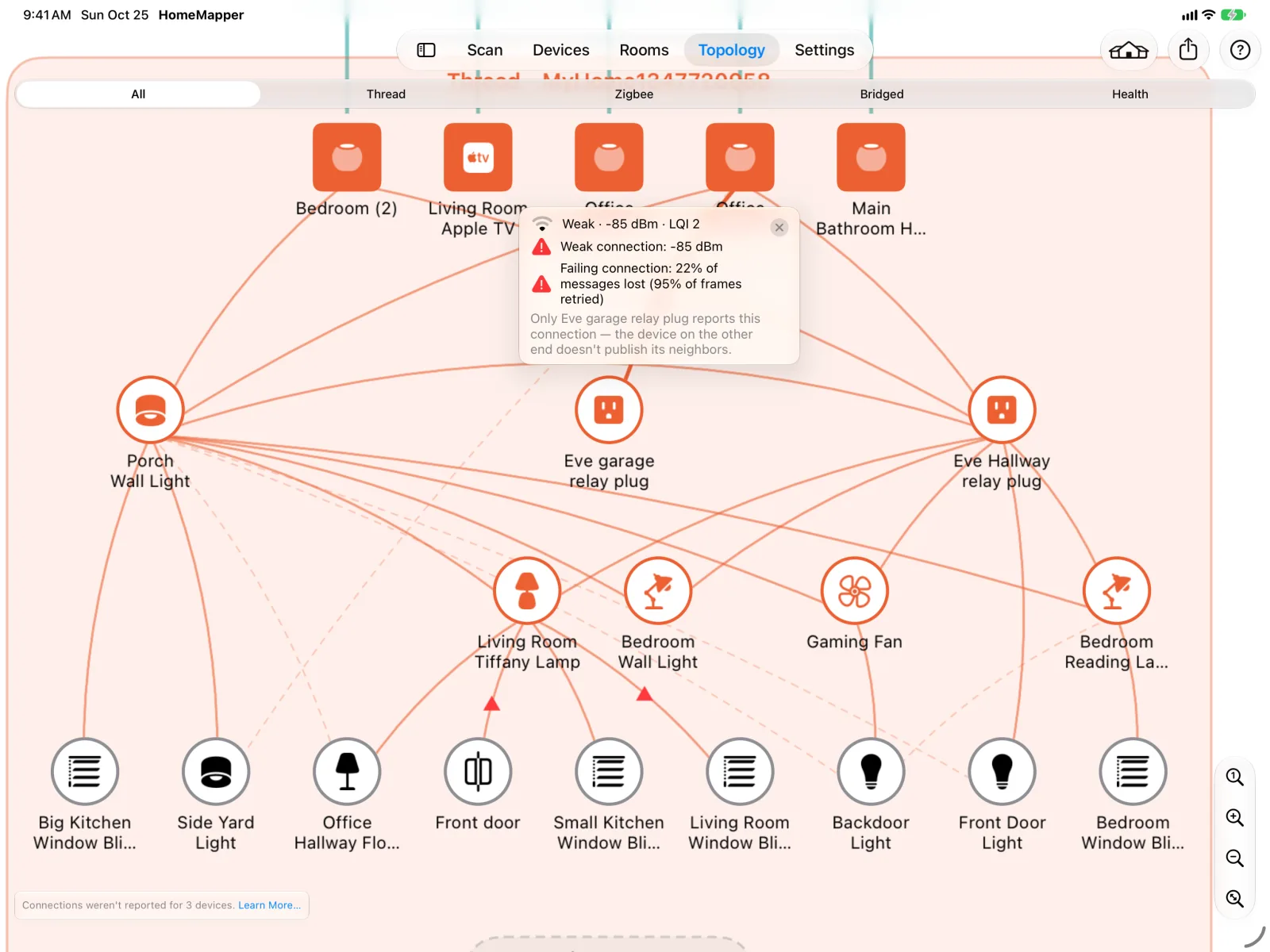
A Border Router From Another Home
You may see a border router with another home's name under it in square brackets, like [Home]. It is on the map on purpose.
A Thread mesh is one radio network, and it does not follow home boundaries. Every device joined to it shares that mesh, whichever app you paired them with. So a border router that belongs to your Home Assistant instance can be how your Apple Home devices reach the rest of the mesh. Hiding it would draw those devices with nothing carrying their traffic.
The bracketed name shows which home that router actually belongs to, so you know why it is on a map of a different one. It appears only on border routers from a home in the selected Place that you've switched off in the Place menu. Everything else on this tab still follows the Place menu: a plug or a bulb from your other home stays hidden.
Active and Backup Connections
Orange lines are the Thread connections we measured. A line turns gray when a device at either end was missing from the most recent scan. There are two kinds:
- Active connection (solid): a route in use. Either a device's link to the router it is joined through, or two routers reaching each other.
- Backup connection (thinner and dashed): a router a device is in radio range of but is not using. This is where it would go if its current router stopped responding.
A dashed line is not a problem. It means that route is spare.
Connections That Aren't Working
A red triangle in the middle of a line means Health lists that connection. Usually that is because it is measured, not working, and something depends on it. It also marks the connection behind a "good signal but traffic isn't getting through" row, or a "devices are losing traffic despite a good signal" row about several devices: one triangle per device, on its worst connection. Those rows follow the same rule as the others and only read connections something depends on. The map and the Health tab always agree about which connections these are. Tap the line to see which of the three below apply; a connection can be in more than one of them at once.
- Weak. The signal is too faint to be reliable. Move the two devices closer together, or add a mains-powered Thread device between them to relay.
- Failing. Many of the messages sent over this link are lost, even after the radio retries them. Tap the line to see how many. It is usually interference rather than distance: a Wi-Fi network, a microwave, or a USB 3 device on the same channel. Something nearby may be causing radio interference; the device's row in Health says what was measured and what to try.
- Stale. The device on the other end still lists this one as a neighbor but hasn't heard from it recently. The device is likely powered off, out of range, or stuck. Power-cycling it usually brings it back.
A weak or failing Backup connection carries no triangle, because nothing is using it, and neither does a weak or failing connection between two routers that also reach each other another way. Tapping one still shows any of the three that apply.
A line with nothing measured behind it never carries a triangle. We don't guess.
Devices We Couldn't Place
Thread devices whose connections we don't have data for appear in dashed boxes inside the box for the network they belong to, split by why we can't place them:
- Not Shared by Apple Home: the device was set up with an Apple Home code. Apple reports its Thread role but not its mesh connections. An Apple limitation. Nothing to do.
- Device Doesn't Report Connections: a Matter over Thread device that responded to the scan and doesn't report its connections, or that this scan never queried. Either way there's nothing to draw, and nothing to do.
- Out of Range or Offline: we queried this device directly and it never responded, or, for a Home Assistant device, Home Assistant reports it as unavailable. This is the one worth acting on: the device is unplugged, out of range, or stuck. Check it.
The first two leave us with no connections to draw. The third means we queried the device and it never responded. See the FAQ for details.
When the last scan ran with HomeMapper in the background, the Out of Range or Offline box leaves out your Apple Home devices, because iOS blocks those queries in the background and every one of them would land in it. Home Assistant devices still go in it, since Home Assistant provides their status either way.
When any devices are in these groups, a note in the bottom-left corner shows the total count. The note appears on the All and Thread sub-tabs, not on Zigbee or Bridged.
Zigbee Network Boxes
If you use Home Assistant's built-in Zigbee integration (ZHA), each Zigbee network gets its own purple box, titled with the coordinator's name: Zigbee - Home Assistant Connect ZBT-2. Two Home Assistant servers with a Zigbee network each give you two boxes.
Inside a box, from top to bottom:
- Coordinator (solid purple square): the Zigbee radio Home Assistant runs the network from. The teal Local Network line runs to it.
- Routers (purple-ringed circles): mains-powered Zigbee devices that relay traffic for others
- End devices (gray-ringed circles): devices that connect through a router or the coordinator, usually battery-powered
Purple lines are the Zigbee connections Home Assistant reported:
- Parent line: from a router or the coordinator to an end device joined through it
- Router line: between two routers, or between a router and the coordinator, that are in radio range of each other
Tap a line to see its link quality, as Zigbee LQI and a number from 0 to 255; higher is better. When both devices report the link, the lower of the two readings is shown. Zigbee lines are never marked weak, failing, or stale: there is no agreed level at which a Zigbee link counts as weak yet, so HomeMapper doesn't rate them.
A device Home Assistant reports as unavailable goes in the box's dashed Out of Range or Offline group, and none of its connections are drawn.
A Zigbee device you've also shared to Apple Home through Home Assistant's HomeKit Bridge appears twice on All: in its bridge's box and in its Zigbee box. It's one device; the two boxes show the two ways it's connected.
The readings are only as fresh as Home Assistant's own. With an administrator account, each scan gets fresh Zigbee readings from Home Assistant; without one, the map shows what Home Assistant last collected.
Bridge Boxes
Each HomeKit bridge (Philips Hue, Lutron, eufy, and similar) gets its own box: the bridge on top, its accessories below it. These accessories reach your home through the bridge rather than over Thread.

Getting Around
- Pinch to zoom, drag to pan
- The controls in the bottom-right corner: Actual size (one map point per screen point, top of the map at the top of the screen), Zoom in, Zoom out, and Fit to window
- The map opens fit to window, so the whole map is visible. Switching sub-tabs or resizing the window goes back to that starting view.
Device Details, Signal, and Stability
- Tap any device to open the same detail popover as the Devices and Rooms tabs
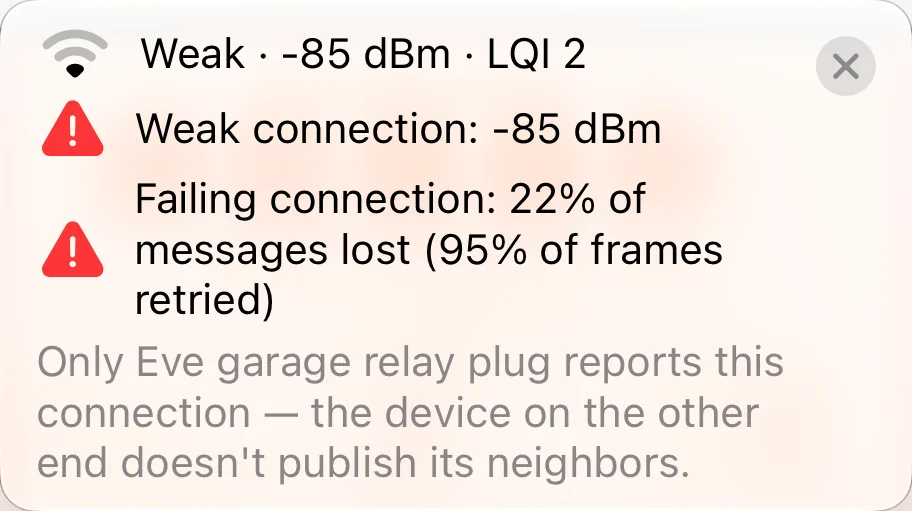
- Tap a Thread connection line to see what we know about that link, in a small bubble at the line's midpoint. The bubble stays until you close it, with the ✕ in its top-right corner or by tapping the same line again. Tapping empty space leaves it alone, so you can pan and zoom with it open. A line with nothing measured behind it (a teal Local Network line, a line into a bridge) opens nothing.
- Tap another line to open a second bubble beside the first, so you can compare two connections side by side. There is no limit; bubbles sit at their own line's midpoint, so bubbles on nearby lines can overlap. When two or more are open, a ✕ button appears above the zoom controls and closes all of them at once.
- To open one bubble at a time instead, turn off Multiple Topology Bubbles in Settings → Appearance. Tapping a line then replaces the bubble already showing. The bubble still stays until you close it either way.
- Bubbles close when you switch sub-tabs or leave the Topology tab, and after a rescan a bubble shows the new reading, or closes if that connection is no longer in the map.
The bubble shows up to four things:
- Signal: quality rating, signal strength (RSSI), and link quality (LQI)
- Stability: how often the child device has had to reconnect since it last restarted: parent changes first, then attach attempts and partition changes below. High counts mean the device keeps losing its place in the mesh even if its signal looks fine right now.
- Condition: one line for each of weak, failing, and stale that applies, with the measurement behind it: the signal reading or the link quality, the percentage of messages lost and of frames the radio had to retry, or how long it has been since the two devices were in contact.
- Who reported it: most Thread connections are only reported by one of the two devices on them, because the other doesn't publish its neighbors. The bubble shows this and names the device that did report. When both ends do report and only one of them lists the other, the bubble shows that instead: the two lists don't match.
Not every line shows all of them. Some lines have no signal reading, no condition, and nothing about who reported them, because the device only reported an address, not a measured connection. Devices that don't report stability counters show just the signal. A healthy link shows no condition line at all.
Lines Home Assistant reported carry a signal reading and a link quality, so they can show as weak. Home Assistant doesn't pass on lost messages, when the two devices were last in contact, or the reconnect counters, so those lines never show failing or stale and have no Stability section.
Health
The Health sub-tab is a list rather than a map: what is wrong with your mesh and what to do first. It has its own page, Topology Health.
Exporting the Map
The Export button in the toolbar (the share icon) saves the whole map as an image. Pick PNG, PDF, or SVG, then save or share the file.
The export always covers the full map at its natural size, not just the part on screen, so zoom and pan don't change it. It matches the sub-tab you're on: All, Thread, Zigbee, or Bridged. The Health sub-tab has no Export button, because it isn't a map. When the last scan didn't map Thread, the All tab exports the bridges and Zigbee boxes only and the Thread tab has no Export button. The image is titled with the home you're viewing and carries a HomeMapper footer with the date and time you created it.
PNG is a plain image. PDF is a single page sized to the map. SVG is a vector file, so it stays sharp at any size and opens in a web browser or a drawing app.
Empty State
A Place that has never been scanned shows "<Place> hasn't been scanned yet" on every sub-tab, and one whose last scan found nothing shows "<Place>'s last scan found no devices" with the date of that scan. Scan it from the Scan screen.
If no topology data exists yet, the map shows "No Topology Data" with a pointer to enable Thread Topology Scan in Settings > Discovery and run a scan.
If you have data but the sub-tab you're on has nothing to show, you'll see a short message instead: "No Thread Devices" on the Thread and Health tabs when your home has no Thread mesh, "No Zigbee Devices" on the Zigbee tab when it has no Zigbee network, or "No Bridges" on the Bridged tab when it has no HomeKit bridges. The message names the other tabs you can switch to, or turn on Hide Unused Topology Tabs to leave those tabs out.
If Home Assistant didn't respond when HomeMapper requested your Zigbee network, the All, Zigbee and Health tabs show this, and the Zigbee tab shows "Zigbee Couldn't Be Read" instead of "No Zigbee Devices". When your home has no Thread mesh, Health shows "Zigbee Couldn't Be Read" too, rather than "No Thread Devices" or "No Topology Data". Neither message points you to other tabs, because the other tabs can't show your Zigbee network until a scan reads it. The Zigbee tab stays in the picker even with Hide Unused Topology Tabs on. Scan again to try once more.
HomeMapper Pro
The map is part of HomeMapper Pro. Without Pro, the Topology tab shows a preview and an upgrade prompt.