What This Screen Shows
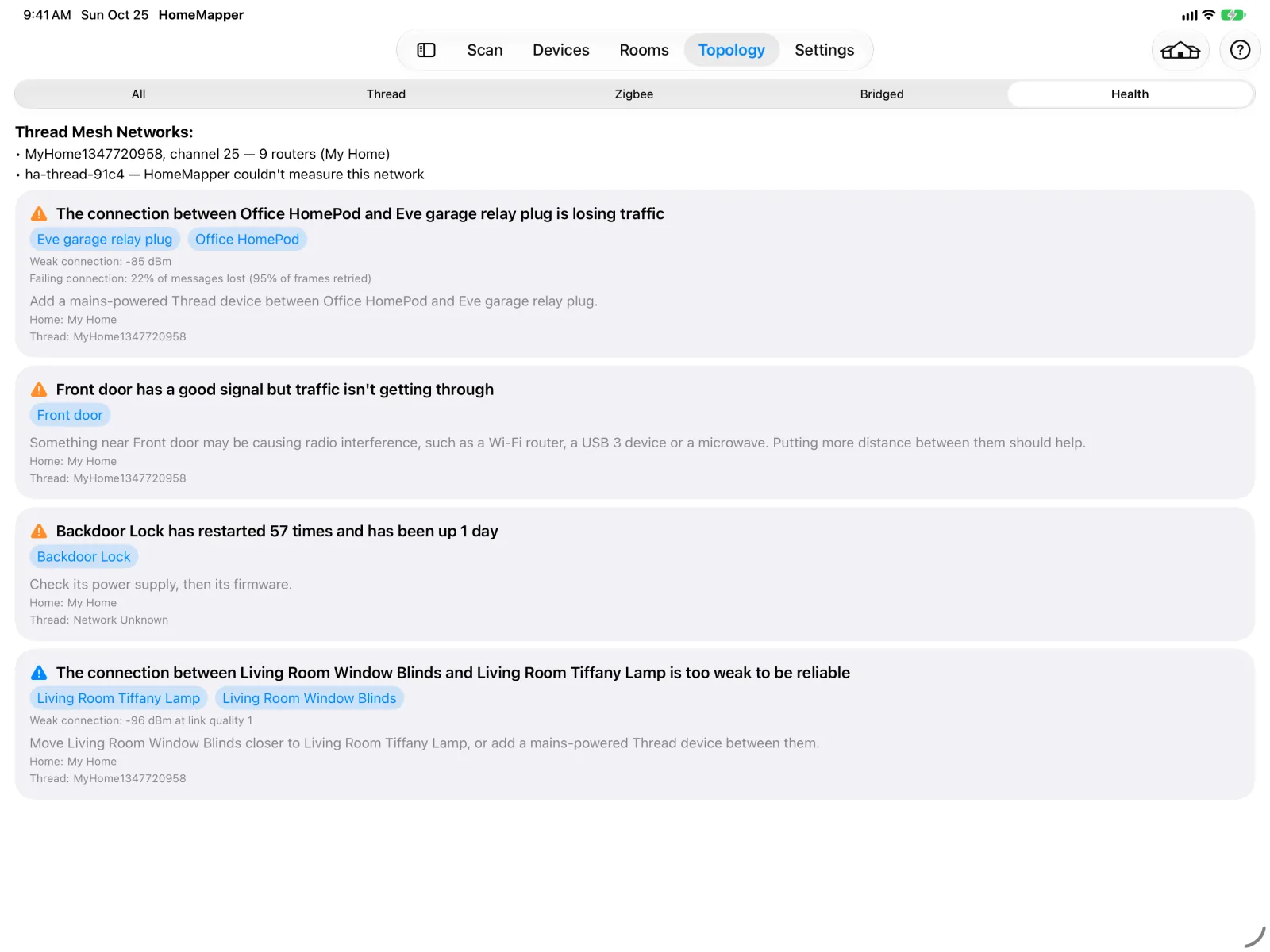
The Health sub-tab of Topology covers the one question the map doesn't: what is wrong with my mesh, and what should I do first. It reads the same measurements the map draws and lists what it found, worst first. Each row shows what the problem is, names the devices it is about, and gives one sentence on what to do. Tap a device name in a row to open its usual detail popover; tap an "Unknown router" name and you get the same addresses panel the map's circle for it opens.
Most homes have nothing wrong, and the tab shows "Everything looks healthy." An empty list is good news rather than a missing screen.
For the map itself, see Topology Screen.
Your Thread Network
At the top is a summary of the mesh itself, under the heading Thread Mesh Network: (Thread Mesh Networks: when your scan found more than one). Under the heading is one bullet per network: its name, the channel it's on, and how many routers it has, as in "MyHome, channel 25 — 20 routers". When your scan covered more than one home, the home the network is in follows in parentheses. It's a fact about the network rather than about any device in it, so it carries no warning colour and appears above the rows whether or not anything is wrong. A network the app couldn't read a router count for shows the name and channel and leaves the count off, rather than showing zero. A network that reported neither one is described in words instead. A split network gets its own bullet, and the map's box heading still shows the split as well, because the heading shows which box is split and the bullet can't.
Thread allows at most 32 routers on one network. That number is a property of the protocol, and a mesh manages its own router count well below it, so there's nothing to do about a home at 20. Only a home actually at the limit gets a sentence, because that's the only count that changes anything: "Thread's limit. Adding more mains-powered accessories won't extend your mesh's range — they'll join as end devices." If you've been adding plugs to improve coverage and nothing is improving, that's why.
What It Covers
It covers five things:
- A device didn't respond to this scan. We queried it directly and got no response. The advice is cautious, because one scan is a snapshot: a device that was busy may respond next time. If it keeps missing, move it closer to a mains-powered Thread device or add one nearby.
- A router is the only path for some of your devices that can relay traffic themselves. Those devices lose their connection if it stops responding. Adding another mains-powered Thread device nearby gives them a second route. The row names the router under Router: and those devices under At risk. Battery-powered devices are not listed here: they only keep track of their own router, and if it stops responding they reconnect to another one on their own. They still appear under the other warnings if they stop answering or their connection is weak or losing traffic.
- A connection is too weak, is losing traffic, or has had no recent traffic. Weak means the signal is faint. Losing traffic means many of the messages sent over the connection are lost even after the radio retries them; retries that succeed don't count. No recent traffic means the device at the far end hasn't been heard from lately. The row shows which of the three it is, names both ends, and shows which one to move. For a connection between two mains-powered routers, the advice is to add a device between them instead, since moving either one usually isn't practical.
When one device has several connections in the same state, they are one row rather than one row each: "Fountain Wall Light has 5 weak connections", the device named once, every far end listed under To: and still tappable, the worst of the readings shown under a label that names the state (Weakest: for weak connections, Worst: for ones losing traffic, Longest silent: for ones with no recent traffic), and the instruction given once. The three states stay apart, so a device with weak connections and connections with no recent traffic gets a row for each, and a device with a single connection in trouble keeps the row naming both its ends.
- A device is probably getting radio interference. Its signal is good but its messages are still being lost on the connection it uses; a spare connection it isn't using never counts. The Signal cell reads "interference suspected". The advice says something nearby, such as a Wi-Fi router, a USB 3 device or a microwave, may be causing it, and that more distance between them should help. When HomeMapper measured a Wi-Fi channel that overlaps your Thread channel, the advice names it and suggests a Wi-Fi channel that doesn't overlap.
When several devices on one Thread network in one home show it, they are one row rather than one row each: "4 devices are losing traffic despite a good signal", every device listed and tappable, and the device losing the most messages shown under Worst.
- A device is restarting. It's restarting now, not just carrying a big restart count from a long life. Check its power supply, then its firmware.
Reading a Row
Some rows carry one or two labels at the foot, and they appear only when there's something to tell apart:
- Home: the home the row is about. Only when your scan covered more than one home, and only when every device the row names is in the same one. Switching homes on or off in the Place menu changes which rows you see, not what each row shows, so the label stays put.
- Thread: the Thread network the row is about. Only when your scan found more than one Thread network and found devices on each, counted across every home rather than only the ones switched on in the Place menu, so the label stays put here too. It's the same network name the map's box is titled with, so a row about "Unknown router 1" can be matched to the box it belongs in. Router numbers are only unique inside their own network, so two rows can otherwise name what looks like the same router. Once the label is showing, a row about a device whose network the scan couldn't identify reads Thread: Network Unknown, and belongs in the box titled Thread - Unknown Network.
The list is ranked, and nothing is grouped by kind: what is at the top is what to look at first. It follows the Place menu in the toolbar like the rest of the tab, so you only see rows about the Place picked there and the homes switched on in it. The one exception is the same as on the map: a row can name a border router from a home you've switched off, when one of the devices you're looking at is on its Thread network. The mesh summary narrows with it too, though its heading still shows whether your scan found one Thread network or several.
Some accessories don't share readings about their own connections. HomeMapper can still show them, from what other devices report, but has less to say about them.
There is no Export button on Health. Export saves the map as a picture, and this sub-tab isn't a map.
Your Zigbee Network
When the map has a Zigbee box for the homes you're looking at, Health adds a Zigbee section below the Thread part. Its rows look and work like the Thread ones: tap a name to open the device. It covers two things:
- Home Assistant reports a device as unavailable. One row per device. Check its power or batteries; if it stays unavailable, move it closer to a mains-powered Zigbee device or add one nearby.
- A Zigbee router is the only path for some of your devices. The same as Thread: those devices lose their connection if it stops responding. Adding another mains-powered Zigbee device nearby gives them a second route. The row names the router under Router: and those devices under At risk. Zigbee end devices, which are usually battery-powered, are not listed, for the same reason as on Thread: they reconnect to another router on their own.
The coordinator is never listed as a single point of failure. Every Zigbee device depends on it, so the row would show up in almost every home and name something you can't fix.
There's no weak-connection row for Zigbee. Nobody has settled what link quality counts as too weak yet, and the map doesn't rate Zigbee lines either, so the two always match.
When nothing needs attention, the section shows "No problems found in your Zigbee network." When your home has a Zigbee network and no Thread mesh, the Thread part shrinks to one line and the Zigbee section follows it. If you restored a backup and haven't scanned since, the section shows that the Zigbee readings came from the backup instead of listing them. When a scan since the restore read one Home Assistant server but not another, the devices whose readings still came from the backup are left out of the rows.
When Health Can't Rate Your Mesh
Five situations aren't an all-clear, and Health shows something different for each:
- Your last scan ran with HomeMapper in the background. iOS doesn't allow mesh measurement in the background, so nothing was measured. You get the same "Thread wasn't mapped" message the All and Thread sub-tabs show. Run a scan with the app open. Home Assistant's Zigbee network is still read in the background, so with a Zigbee section the message shrinks to a card above it.
- You restored a backup and haven't scanned since. The readings are real but describe your mesh as it was when the backup was taken. Health shows none of them and shows a prompt to scan instead.
- HomeMapper hasn't read your mesh. No scan has measured it yet, or the app couldn't read the readings it had stored. Health shows "Mesh Not Measured Yet" and a button to open Scan.
- The map has a Thread network no scan measured. That network appears as a bullet under Thread Mesh Network giving the reason: Thread Topology Scan or IP Network is off in Settings → Discovery, the network's accessories are paired with HomeKit rather than Matter, or its readings came from a backup. "Everything looks healthy." isn't shown while the map has such a network. When the list has nothing else to show, you get "Thread Mesh Not Measured" instead, with one line per network giving the same reason.
- Your home has no Thread mesh. You get "No Thread Devices", the same as the Thread sub-tab. When the home has a Zigbee section, the Thread part reads "This home has no Thread mesh." instead.
A Place that has never been scanned, or whose last scan found nothing, is shown that way here as it is on the map sub-tabs.
HomeMapper Pro
Health is part of HomeMapper Pro, with the rest of the Topology tab.