Protocol Bar
With HomeMapper Pro, a row of protocol icons appears below the toolbar. Tap any icon to show or hide devices from that source:
HomeKit
Home Assistant
Matter
Thread
IP Network
The trailing edge shows room and device counts: on iPad it shows the full text (e.g., "12 Rooms · 97 Devices"), on iPhone it shows compact numbers (tap to see the full label).
The bar stays pinned at the top as you scroll. See the Devices help page for details on each protocol.
Toolbar
Icons shows which toolbar button is which.
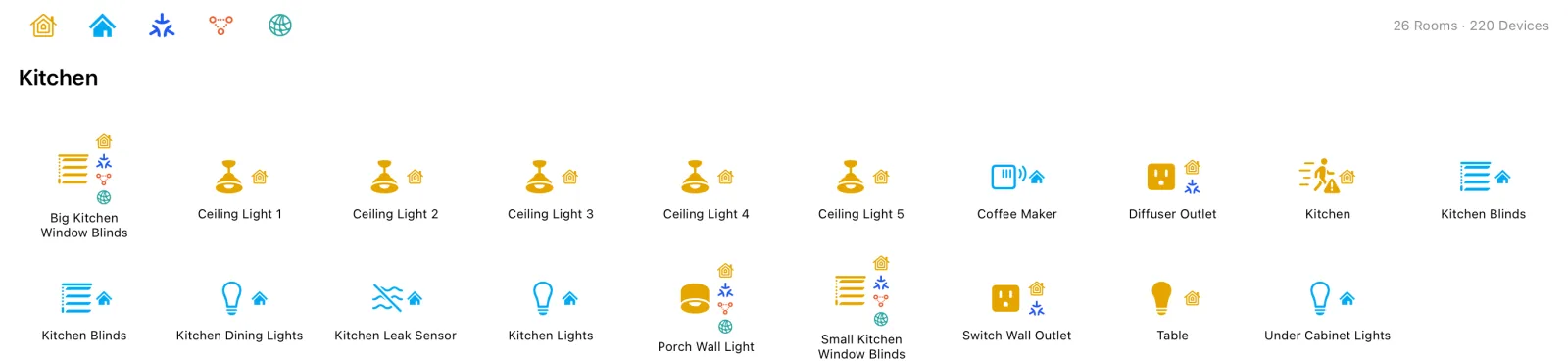
Room Sections
Devices are grouped by room. Each room is a section with its name as the header, followed by a grid of devices. The room header pins to the top as you scroll through that room's devices, so you always know which room you're looking at.
Room names come from HomeKit and Home Assistant. HomeKit rooms and Home Assistant areas both map to rooms in this view. When you have both connected, HomeMapper shows the room name from your Primary Platform first (set in Settings > Discovery) and falls back to the other platform if the device has no room there. Devices without any room assignment appear in an Unassigned section.
By default, rooms are listed alphabetically with Unassigned at the bottom. To customize the order, go to Settings > Appearance > Manage Room Order (Places, Homes & Rooms on Pro when you have more than one home or Place), then press and hold a room and drag it into the order you prefer. Newly discovered rooms appear at the top of your custom list (alphabetically) until you reorder them.
Device Icons
Inside each room, devices appear in an adaptive grid: more columns on wider screens, fewer on iPhone. Devices within a room are listed alphabetically by name.
Each device shows:
- Device icon (top) with its protocol badges. See Icons for what the icons, badges and colors mean.
- Device name (below icon): up to 2 lines, centered
Tap any device to open the device detail popover (same as on the Devices tab). The popover shows full metadata and, for devices missing from the most recent scan, lists which sources stopped reporting under "Reachability Issue" with a trash button to remove the device.
Empty States
- A Place that has never been scanned: "<Place> hasn't been scanned yet." Scan it from the Scan screen.
- A Place whose last scan found nothing: "<Place>'s last scan found no devices," with the date of that scan.
- No devices discovered, without Places: "No Devices to Display. Tap Scan to discover your network and view devices by room."
- Filters block all: "No Devices Match Filters" + "Clear Filters" button
- Loading: "Loading rooms..."
Tips
Tips appear on key features the first time you encounter them. Tap "No Tips" to stop them, or use Settings > Support > Support Configuration > Reset Tips to bring them back.