Toolbar

Icons shows which toolbar button is which.
Export: The CSV export includes every column, whether or not it is visible in the list. It holds the rows the list is showing, in the order it shows them, so the Place menu, the Protocol Bar and search all narrow it.
Field Settings
The Field Settings popover has two sections:
Sort: Configure how devices are ordered. Pick a primary sort column and toggle ascending/descending. Add a secondary sort ("Then by") as a tiebreaker. Default: Room ascending, then Name ascending.
Fields: Toggle which columns appear in the device list. Name is always shown (pinned). All other columns can be toggled, listed in the order they appear in the table: Place, Home, Zone (Floor on Home Assistant), Room, Last Scanned, Online, Category, Found via, Manufacturer, Model, Firmware, Serial No., Battery, Setup Code, Signal, Thread Network, Channel, Thread Role, Stability, Thread Version, Connected via, Integration, MAC, IP.
Column visibility and sort preferences are saved between app launches. Reset at the top of the popover brings back the default columns for your screen size and sorts by Room, then Name. On Free, columns and sort options that need HomeMapper Pro show a Pro label.
Search
Type in the search field to filter devices by name. The search updates in real time. Search matches against device name, room, manufacturer, and model.
Protocol Bar
With HomeMapper Pro, a row of protocol icons appears below the toolbar. Tap any icon to show or hide devices from that source:
HomeKit
Home Assistant
Matter
Thread
IP Network
Colored icons are showing their devices; gray icons are hiding them. The HomeKit, Home Assistant, and IP Network icons are also gray, and can't be tapped, when that source is turned off in Settings → Discovery. A device count appears on the trailing edge: on iPad it shows the full count (e.g., "97 Devices" or "72 of 97 Devices"), on iPhone it shows compact numbers (tap to see the full label).
The bar stays pinned at the top as you scroll.
Column Overflow Hint
When more fields are visible than can comfortably fit on screen, a hint appears above the table:
"Some columns may not fit. Hide fields or enable Auto-Fit Columns in Settings."
Tap the hint to open Field Settings, where you can toggle off columns you don't need. Tap the X to dismiss the hint until the next time the window is resized.
This hint only appears on iPad/Mac table view, not on iPhone. To stop it from appearing, turn on Auto-Fit Columns in Settings → Appearance. Auto-Fit shows and hides columns for you as the window resizes, so the hint has nothing to flag.
Device List
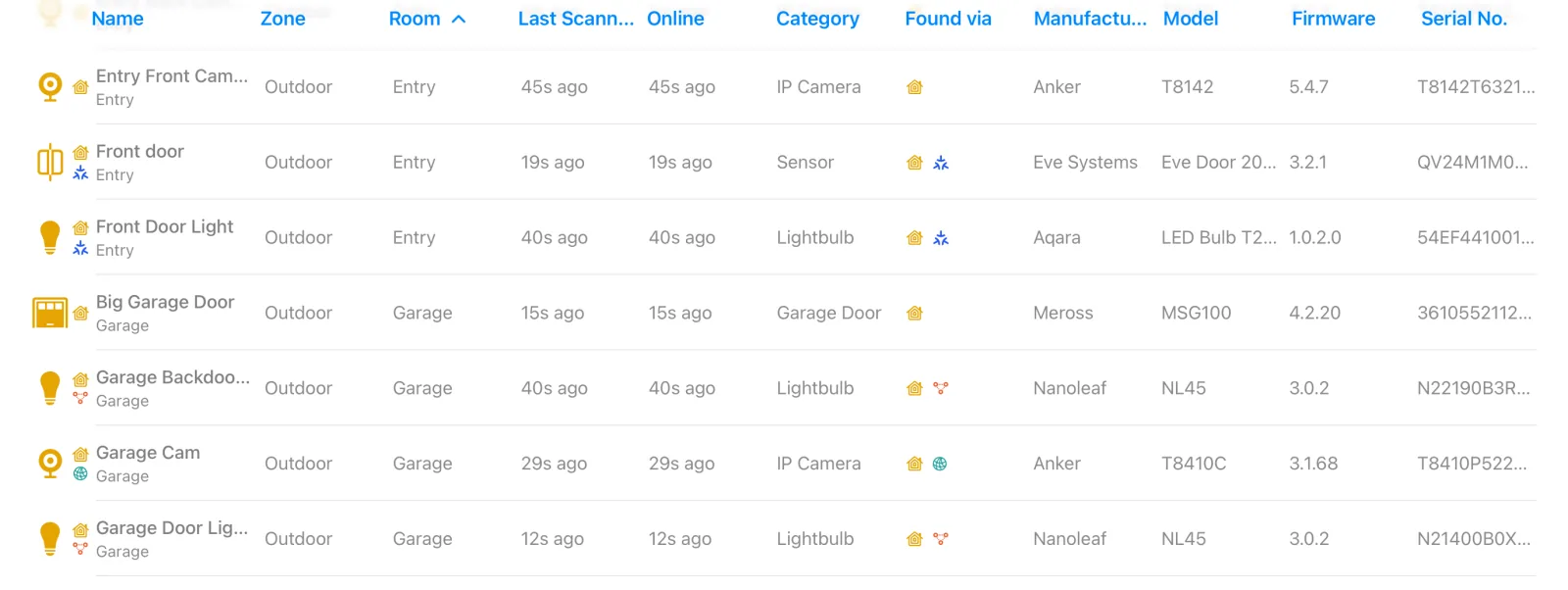
The device list has two layout modes that switch automatically based on screen width:
Table View (iPad / Mac) is a full table with sortable column headers. Tap any column header to sort; tap again to reverse direction.
A dash (—) in a cell means HomeMapper has no value for that device. The column descriptions below show where each value comes from, for Apple Home and Home Assistant devices alike. Many of the Home Assistant ones come from sensors you switch on in Home Assistant; Getting more from Home Assistant lists them.
- Icon: Device type icon with its protocol badges beside it
- Name: Device name + room (below, in smaller text)
- Place: The Place the device belongs to, or a dash when it has none. Off by default unless you have more than one Place
- Home: HomeKit home name or Home Assistant instance name
- Zone/Floor: HomeKit zone or Home Assistant floor, depending on your Primary Platform setting. Labeled "Zone" when HomeKit is primary, "Floor" when Home Assistant is primary.
- Room: Room assignment
- Last Scanned: Relative time since last scan appearance
- Online: Relative time since last confirmed reachable
- Category: Device type (Light Bulb, Lock, Sensor, etc.)
- Found via: Protocol icons (colored symbols for each protocol)
- Manufacturer: Device manufacturer
- Model: Device model
- Firmware: Firmware version string
- Serial No.: Serial number
- Thread Network: The name of the Thread network the device is on, whether Apple Home or Home Assistant reported it. A device that doesn't report a network name itself shows the network whose box the Topology map draws it in, so the table and the map agree. A dash for a device the map puts in the Unknown Network box or in no Thread box.
- Channel: The radio channel the device is on, with the radio named: "Thread 25" for a Thread device, "Wi-Fi 1" for a Matter-over-Wi-Fi one. The two count channels differently, so the name keeps you from comparing them. For an Apple Home device it's read during a topology scan; the cell reads "No response" when the scan queried the device and got no response, and "Not reported" when the device responded without a channel. For a Home Assistant device it comes from the device's Thread channel sensor, which Home Assistant ships switched off, so the cell shows a dash whenever that sensor is off, even if an earlier scan read a channel (see Getting more from Home Assistant)
- Thread Role: The device's job in the mesh: Router, Leader, End Device, one of the border-router labels, and the rest. A device that routes for others also carries how much of the mesh it reaches, as "Router (reaches 21)". See Thread Roles & Mesh Networking for every value. A Home Assistant device gets its role from Home Assistant's Thread map. Reads "Not reported" for a device that responded to the topology scan without a role, and "No response" for one the scan queried that never responded, or that Home Assistant reports as unavailable. That one may fill in on a later scan
- Stability: How long the device has been up, as "up 342d" or "up 40m". It switches to the restart count, "63 restarts", when the device is restarting right now. A big restart count on its own is not a problem: the count never resets, so an old device can carry a large one and be perfectly healthy. The detail popover shows everything the device reported. An Apple Home device reports these during a topology scan. A Home Assistant device gets them from its Reboot count and Uptime sensors, which Home Assistant ships switched off; see Getting more from Home Assistant for how to turn them on. A dash means the device reported neither.
- Thread Version: The device's Thread stack version
- Battery: Percentage + icon, "Low", or dash
- Connected via: The device one level up: the HomeKit bridge or Home Assistant hub it connects through, or, for a Thread device, its parent router. The parent router comes from Apple Home's topology scan or Home Assistant's Thread map, whichever measured the device. A Thread device that can relay traffic itself and named no other router nearby reads "Kitchen Plug (only path)", meaning that if this parent stops responding, the device has no other route. Battery-powered devices are never marked, because they reconnect to another router on their own
- Integration: Home Assistant integration type (Zigbee, Z-Wave, Matter, etc.)
- Setup Code: Whether a setup code is saved for this device (Pro Setup Code Vault)
- IP: Device IP address resolved during IP Network discovery
- MAC: Hardware address from network discovery
- Signal: Connection strength, shown as bars. Four kinds of reading can appear here, and the one closest to the connection the device depends on wins: a Thread device's link to its parent router (RSSI and link quality, from Apple Home's topology scan or Home Assistant's Thread map) first, then the device's own Wi-Fi signal, labelled so you can tell the two apart ("-31 dBm Wi-Fi"), then a Zigbee device's signal ("-70 dBm Zigbee"), then how quickly the device responds over IP (round-trip time). A Home Assistant device's Wi-Fi signal comes from its Wi-Fi signal sensor, and a Zigbee device's from its RSSI and LQI sensors; Home Assistant ships those switched off (see Getting more from Home Assistant). Zigbee link quality appears as "Zigbee LQI 180" and runs from 0 to 255, a different scale from the 0 to 3 a Thread device shows. A dash means none of the four was measured. When a device is probably getting radio interference, the cell turns red and adds "interference suspected".
Compact Card View (iPhone / Narrow iPad): On smaller screens, each device is a card showing the device icon, name, room, and protocol badges. Only fields that are enabled in Field Settings and have values appear.
Tap any device (row or card) to open the detail popover.
Icons
What the device icons, protocol badges, icon colors, gray icons and battery icons mean is all on one page: Icons.
Battery Column
The Battery column shows the device's battery percentage with a battery icon, "Low" when the device reports a low battery without a percentage, or a dash for a device without a battery. See Icons for what the icon's colors and the charging bolt mean.
Device Detail Popover
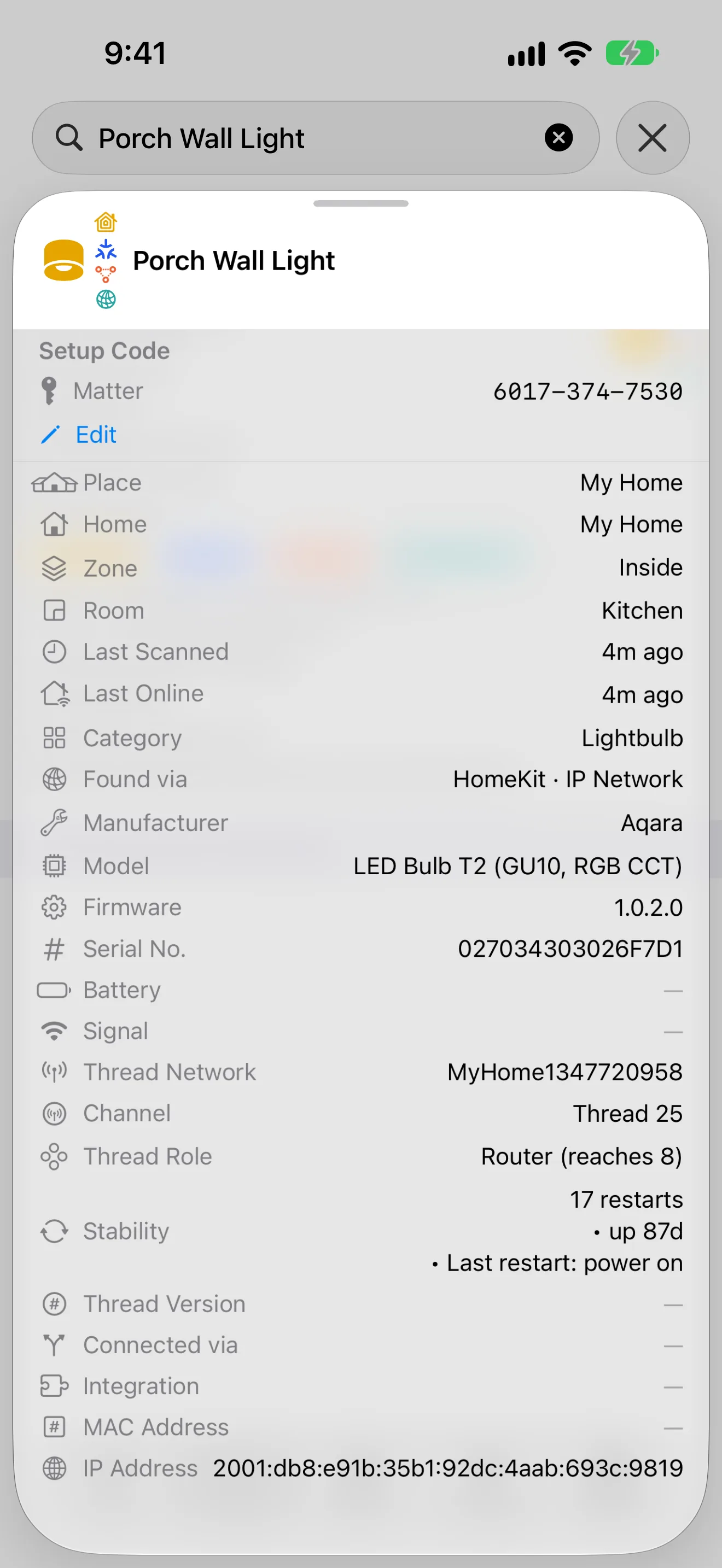
Tap any device to see its full details: all metadata fields (even those hidden in the table), protocol badges, device icon, battery status, bridge information, and timestamps.
On iPad, this appears as a floating popover. On iPhone, it slides up as a sheet.
Stability: This row stacks everything the device reported: its restart count, how long it has been up, why it last started, then parent changes, attach attempts, partition changes and beacon losses. Parent changes, attach attempts and partition changes have counted up since the device last restarted. "(since device restart)" appears once, on whichever of those three the device reported first, and it names the measurement window rather than a rate. Beacon losses gets its own line without it. A device that keeps switching parents or reattaching has a weak connection to the mesh even when its current signal reads fine. A Home Assistant device shows the restart count, uptime and restart reason from its sensors; Home Assistant doesn't pass on the other counters. When a Home Assistant device has its Reboot count or Uptime sensor switched off and nothing to show here, the row is followed by Turn on Reboot count and Uptime for this device in Home Assistant to see its stability. Tap it to open Getting more from Home Assistant.
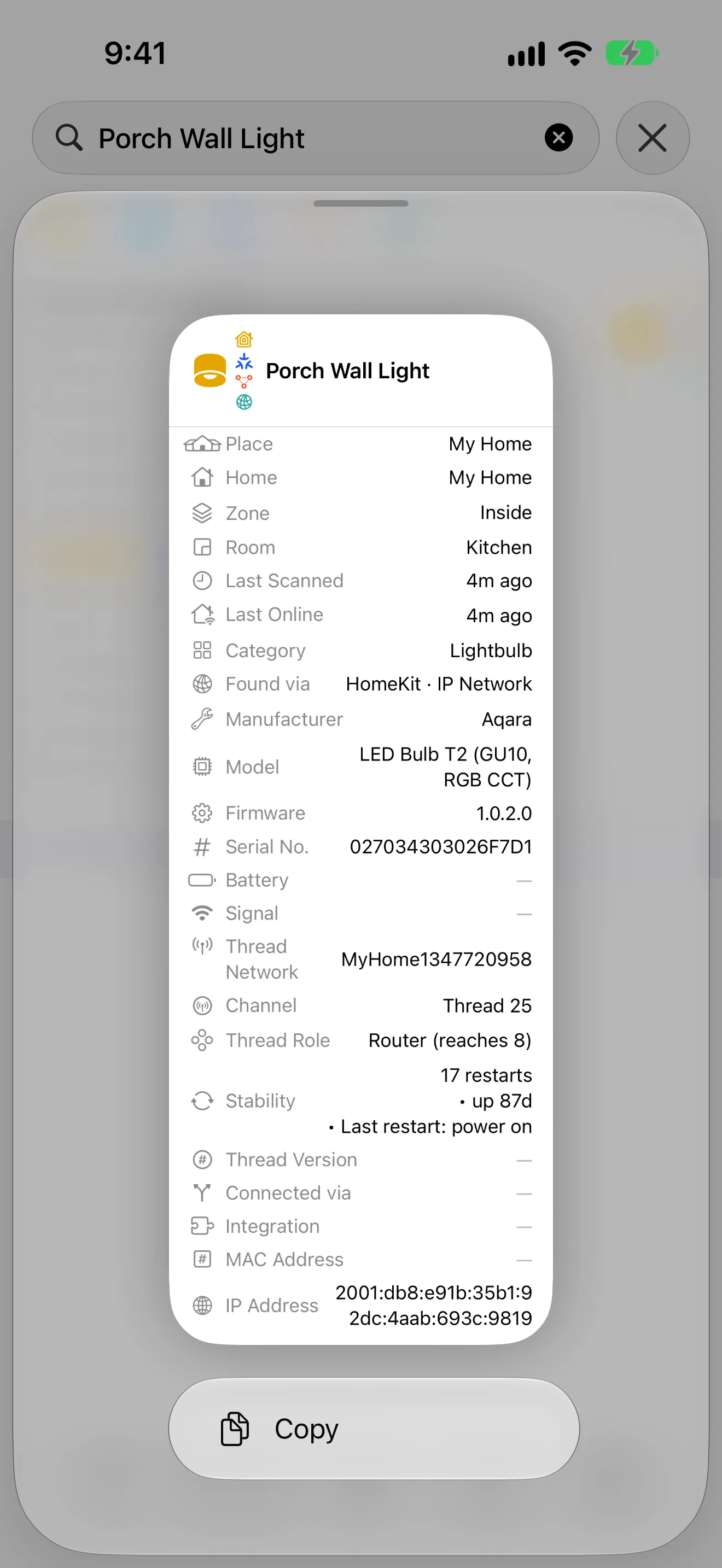
Copy Device Details: Long press anywhere on the detail popover to copy all fields to the clipboard as plain text. Each field is formatted as "Label: Value" on its own line, so you can paste it into a message or bug report.
Empty States
- A Place that has never been scanned: "<Place> hasn't been scanned yet." Scan it from the Scan screen.
- A Place whose last scan found nothing: "<Place>'s last scan found no devices," with the date of that scan.
- No devices discovered, without Places: "No devices discovered." Start a scan to discover devices.
- No search results: "No devices found. Try adjusting your search terms"
- Filters block all: "No Devices Match Filters" + "Clear Filters" button
- Loading: "Loading devices..."
Tips
Tips appear on key features the first time you encounter them. Tap "No Tips" to stop them, or use Settings > Support > Support Configuration > Reset Tips to bring them back.