Note: Matter over Thread devices show no Thread role. Many smart devices come with two setup codes printed on the box: a Matter code and an Apple Home code. If you set the device up using the Matter code, Apple hides its Thread role and network info, so it shows up as Matter only even though it's running on Thread underneath. Setting it up with the Apple Home code instead lets HomeMapper show the Thread role and network name. We've filed feedback with Apple and hope this gets addressed in a future release.
What Is a Mesh Network?
Traditional Wi-Fi works like a hub and spoke: every device connects directly to your router. If a device is too far from the router, it loses connection.
Thread works differently. Thread devices connect to each other, forming a mesh. Each device that's plugged into power can relay messages for its neighbors. This means:
- More devices = better coverage: Adding a Thread device in the hallway improves connectivity for devices in adjacent rooms.
- Self-healing: If one device goes offline, the mesh routes around it automatically.
- Low power: Battery-powered devices can keep their radio off most of the time, turning it on briefly to send data through a nearby router.
The Roles
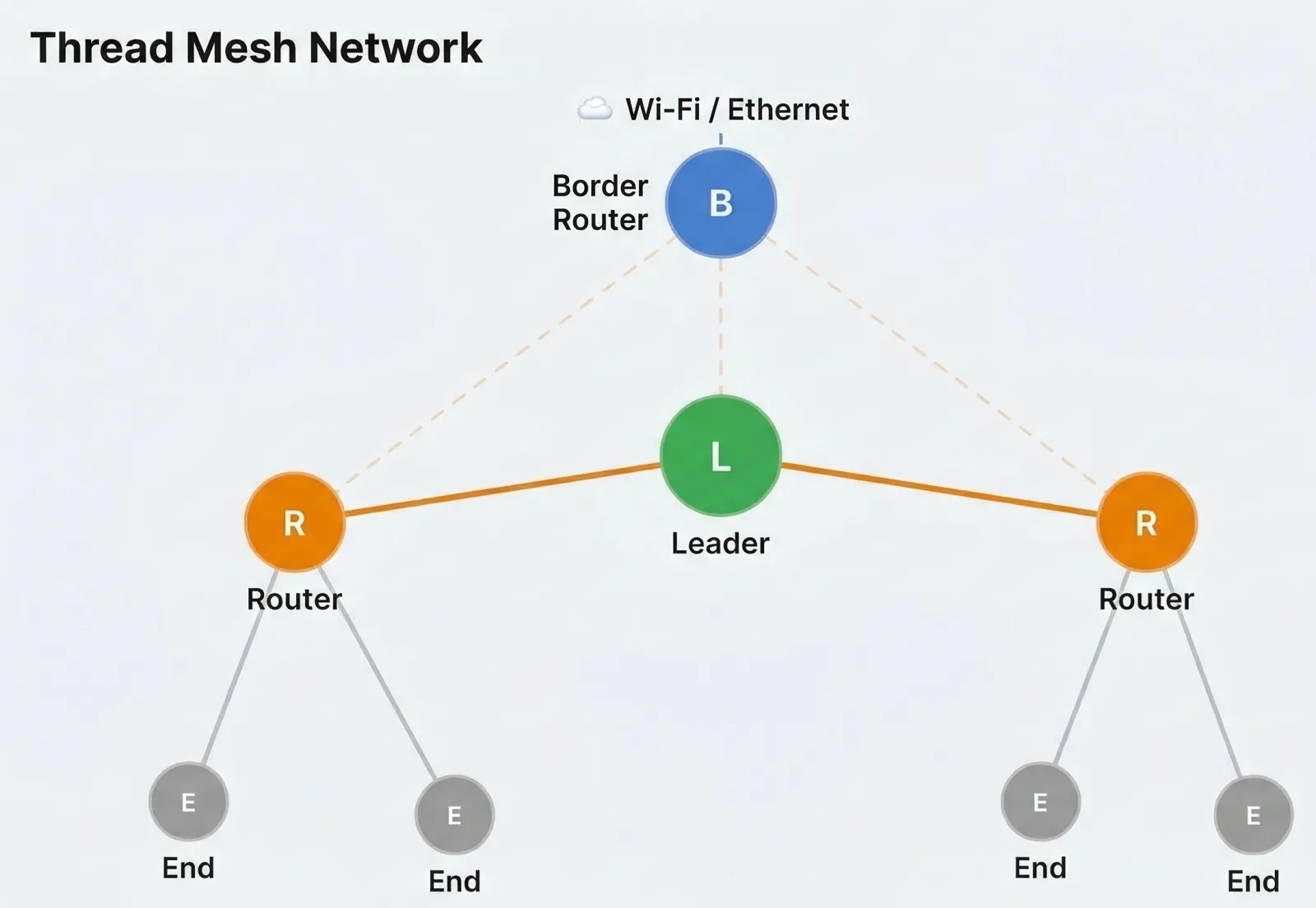
Every device on a Thread network has a role. The role determines how it participates in the mesh.
Leader
One device per Thread network is elected Leader. The Leader keeps the mesh organized, coordinating traffic and helping new devices join.
If the Leader goes offline, another Router is automatically elected to take over. You don't need to do anything; the mesh handles this itself.
Typical Leaders: Apple TV, HomePod mini (whichever the mesh elects)
Router
Routers are the backbone of the mesh. They forward data packets for other devices, serve as "parents" for End Devices, and can be elected Leader if the current Leader goes offline.
Any mains-powered (plugged-in) Thread device can become a Router.
Typical Routers: HomePod mini, Apple TV, Nanoleaf bulbs, Eve Energy (plugged in), IKEA smart plugs
End Device
End Devices are typically battery-powered. They connect to a single Router (their "parent"), keep their radio off most of the time to conserve battery, and do NOT forward data for other devices.
Typical End Devices: Eve Door & Window, Eve Motion, Eve Weather, battery-powered sensors
Two End Device roles carry a little more detail when the device reports it:
- End Device (sleepy): turns its radio on only to check in with its parent, and keeps it off the rest of the time. This is how a battery sensor lasts a year.
- End Device (router-eligible): could become a Router if the mesh needs another one, but hasn't been promoted.
Router (observed) and Leader (observed)
These two mean the device didn't report its own role, so the role shown comes from other devices' readings. A Router (observed) is a device other devices in the mesh route through. A Leader (observed) is the device the rest of the network names as its leader.
They're as reliable as the devices that reported them, and they're the reason a device that reports nothing about itself still gets a role instead of a blank cell.
Border Router
Border Routers bridge between your Thread mesh and your Wi-Fi/Ethernet network. Without a Border Router, Thread devices can connect to each other but can't reach the internet or communicate with non-Thread devices (like your phone).
Border Router is a function, not a Thread role. A device can be a Router (or Leader) AND a Border Router at the same time.
Typical Border Routers: Apple TV, HomePod mini
Border Router roles can lag. A Border Router announces its role on your network and updates that on its own schedule, so the role shown can be a scan or two behind. If a role looks wrong, scan again.
The Leader can change on its own. When a Leader goes offline, the mesh elects a new one, so the Leader shown can be a scan behind. If it looks wrong, scan again.
The six Border Router labels. Each Border Router shows one of these:
- Border Router: the ordinary case. It bridges your Thread mesh to Wi-Fi.
- Border Router (primary): the one carrying traffic between your Thread mesh and the rest of your network right now. A home with several Border Routers picks one for this.
- Border Router (spare): a Border Router that isn't currently relaying traffic inside the Thread mesh. This is normal and not a fault. A Thread mesh promotes devices to Routers only when it needs more of them, so a Border Router sitting spare means the mesh already has enough. It bridges to Wi-Fi as usual, and the mesh can promote it whenever it needs to.
- Leader (border router): leading the mesh and bridging it, both jobs at once.
- Leader (primary border router): leading the mesh and carrying the traffic in and out of it.
- Border Router (Thread off): the only one worth acting on. The device is a Border Router whose Thread radio isn't running, so it isn't bridging anything. Check that Thread is still enabled on it, then power-cycle it.
Disabled
Thread hardware is present on the device but not currently active. The device isn't participating in any Thread network.
Detached
The device supports Thread but isn't currently connected to any mesh. Common causes:
- No Border Router in range to join through.
- Stale credentials after a network change.
- Post-reboot: devices briefly show Detached while rejoining. Usually resolves in a minute or two.
- Wi-Fi setup only: the device was never commissioned onto the Thread network.
If Detached persists, try power-cycling your Border Router (HomePod mini, Apple TV) and updating the device firmware.
Thread Networks
Your home may have one or more Thread networks. Each network has a name (like "Home Thread Network") and its own mesh of Routers and End Devices.
HomeMapper shows the Thread network name when available.
Thread + Matter
Many Thread devices are also Matter devices. These two protocols work together:
- Matter is the application layer. It defines what commands a device supports (turn on, set brightness, report temperature).
- Thread is the transport layer. It handles how those commands travel across the mesh network.
A device using "Matter-over-Thread" uses Matter for its smart home features and Thread for connectivity. These devices show both a Matter badge and Thread information in HomeMapper (Icons shows the badges).
HomeMapper cannot distinguish between Matter-over-Thread and Matter-over-Wi-Fi from scanning alone. There's no passive way to determine which transport a Matter device uses without commissioning it, which HomeMapper intentionally does not do.
What HomeMapper Can and Can't See
What HomeMapper shows:
- Thread role for each device, including devices paired to Home Assistant (from Home Assistant's Thread map)
- Thread network name
- Which devices are Border Routers
- Thread protocol version of each Border Router
- The radio channel a device is on and its mesh stability counters, read during a topology scan. The Channel column carries Matter over Wi-Fi devices too, and names the radio ("Thread 25", "Wi-Fi 1") so you don't compare the two numbering schemes. For a Home Assistant device, the channel, restart count and uptime come from diagnostic sensors you switch on in Home Assistant; see Getting more from Home Assistant
- Measured connections on the Topology map, with signal per link, for devices that report their connections, whether through Apple Home or Home Assistant. That covers a device's link to its parent, a link between two routers, and a backup link to a router a device is in radio range of but isn't joined through
What HomeMapper can't show:
- Mesh connections for devices set up with an Apple Home code (Apple reports the role but not the connections) or for devices that don't report their connections when queried, or that a scan never got to query. These appear in the Topology map's dashed Not Shared by Apple Home and Device Doesn't Report Connections boxes. Neither box is a sign of a problem. A device we queried that never responded goes in a third box, Out of Range or Offline, which is the one worth checking.
- Thread network credentials or security keys
- Data traffic statistics