What a Setup Code Is
Every HomeKit, Matter, and Z-Wave accessory ships with a setup code: the number printed on the device's sticker or box. You need it to pair the device, and you'll need it again if you ever reset the device or move it to a new home. If the sticker is gone, so is the code.
HomeMapper gives you a place to save those codes while you still have them. You capture each code once, and it stays with the device in your list. Saving and managing setup codes is a Pro feature.
HomeMapper can never find a setup code for you. Setup codes don't travel over the network, so a scan can't detect them. The code only exists on the sticker, the box, or wherever you saved it.
Which Devices Can Save a Code
A device can hold a setup code when there's actually a fixed code to save:
- HomeKit accessories you paired yourself
- Matter devices added directly to your home
- Home Assistant devices on the Matter, Z-Wave, or HomeKit Controller integrations
For Home Assistant devices, Home Assistant is where the device comes from; the code itself is still a Matter or Z-Wave code, and that's how HomeMapper labels it.
Some devices are left out on purpose. A bulb or sensor that's part of a hub (a Hue bulb, an Aqara sensor) has no code of its own. You paired the hub, and the hub is the one that holds a code. A device you set up in Home Assistant keeps its code even when Home Assistant shares it on to Apple Home. Home Assistant's own HomeKit bridge is left out, and so is any camera, sensor, or other accessory Home Assistant publishes to Apple Home on its own: each one shows its pairing code only while it's unpaired, so once you've paired it there's no code left anywhere to read. HomePods, Apple TVs, and AirPlay speakers and TVs are added without a code. Zigbee devices usually join without one, so they're not flagged as missing it. And routers, printers, and other plain network gear have no setup code at all.
A brand-new device becomes eligible after your next scan, once HomeMapper has identified it.
The Setup Code column on the Devices page shows the saved code, or Code Missing for a device that can hold one but doesn't have one saved yet.
Fill In Missing Codes, Room by Room
The fastest way to catch up on a whole home:
- Open Settings > Setup Codes > Devices Missing Setup Codes. Every device that can hold a code but doesn't have one is listed, room by room, in your Rooms-page order. With Places, the list covers the Place shown in the Place row at the top of Setup Codes; pick another Place there to see its devices.
- Tap a device, enter its code, and save.
- The device drops off the list right away. No rescan needed.
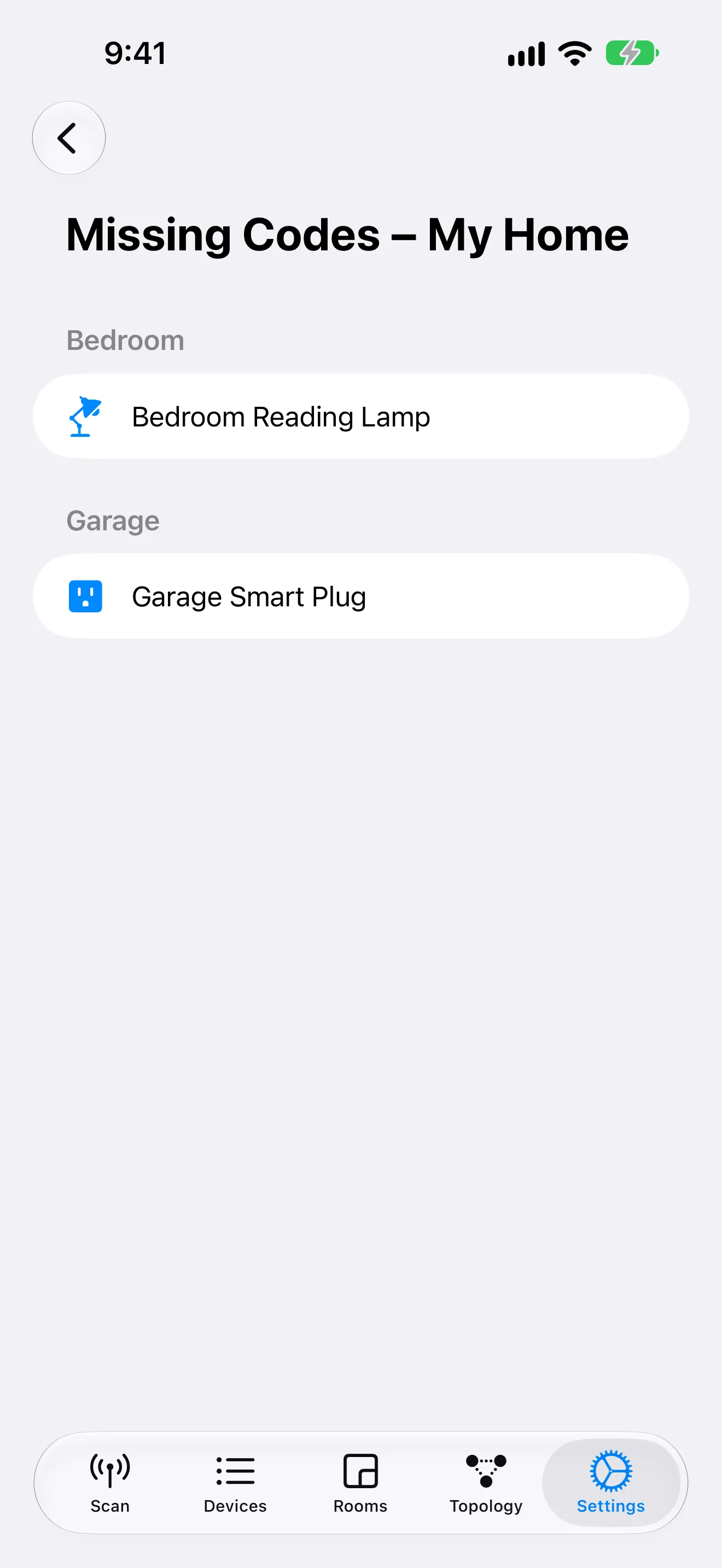
When the list is empty, you'll see "Every device has a setup code."
Not sure which device you're holding? Identify Device on the code entry sheet flashes or chimes a HomeKit device so you can find it before reading its sticker.
Bulk Entry with a CSV Worksheet
If you'd rather work in a spreadsheet, export a worksheet instead: Settings > Setup Codes > Export Setup Codes CSV Worksheet. You get one row per device that can hold a code, with the saved code filled in where you have one and a blank cell where you don't. With Places, the worksheet covers the Place shown in the Place row. Type the codes you have into the blank cells, save the file, then tap Import Setup Codes CSV Worksheet on the same screen to load them all at once.
Importing only adds or updates setup codes; it never creates or changes a device. Rows you left blank are skipped. If a device already has a different code saved, you choose which one to keep before anything is written.
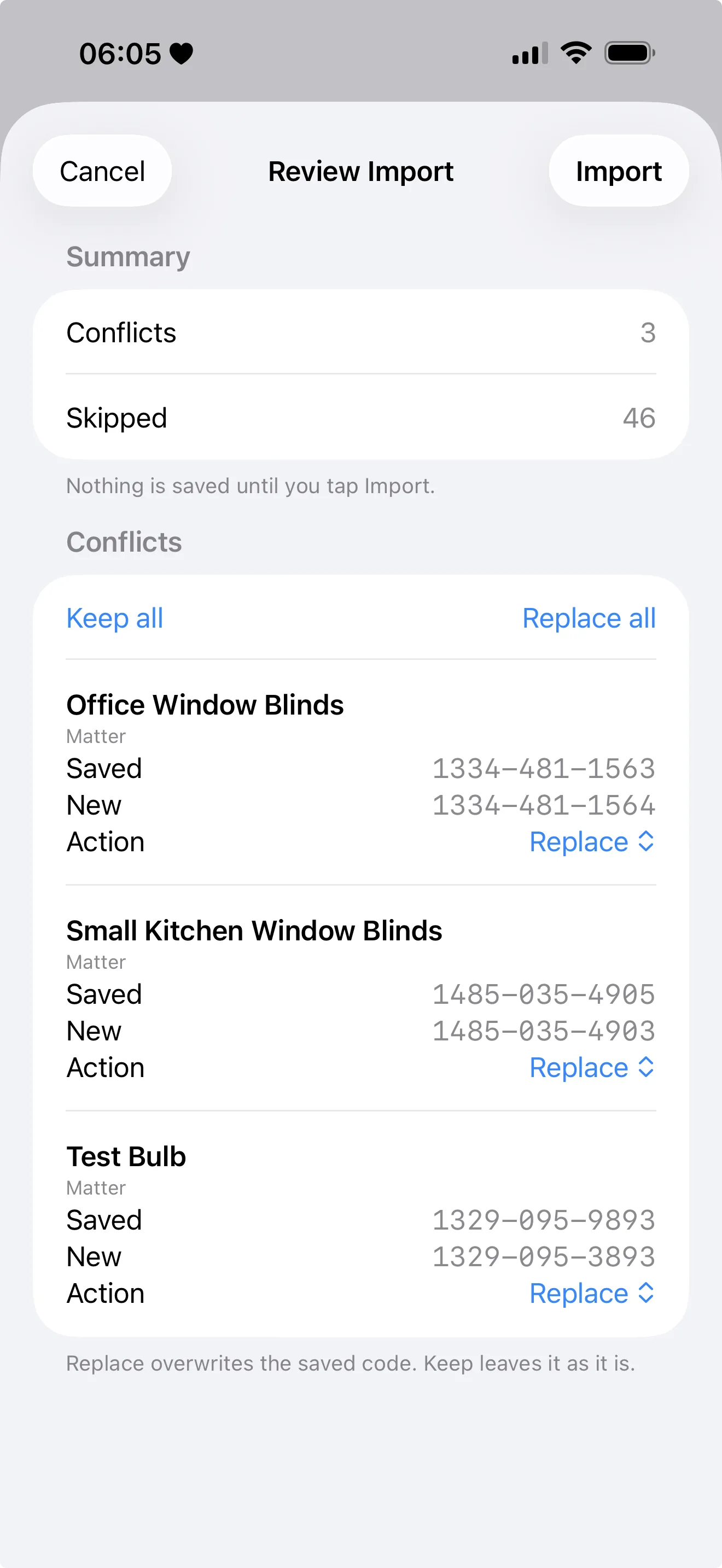
The same file also works on your other devices. Import matches each row to a device HomeMapper has already found, so on an iPad or Mac signed into the same Apple Home (and connected to the same Home Assistant), run a scan first, then import the CSV there. Rows that don't match anything, including codes from a different account, are listed instead of guessed. To copy everything onto a brand-new device, restore a backup instead (see "Keeping and moving your codes" below).
Adding a Single Code
In Devices or Rooms, tap a device to open its details. A device that can hold a code but doesn't have one shows Add Setup Code. It opens one sheet with three ways to enter the code:
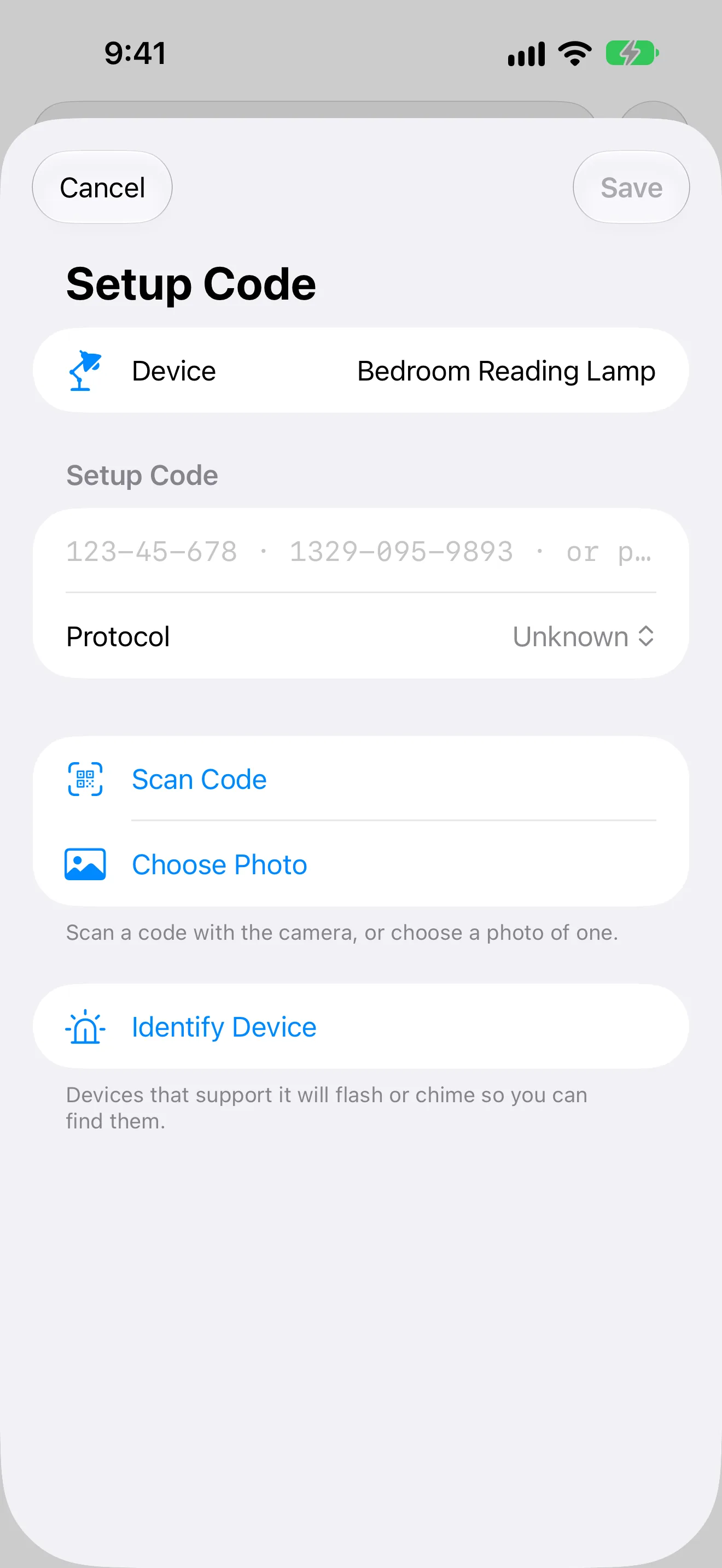
- Type it in. Type or paste the code, or paste the full text from a QR code. HomeMapper detects the protocol from what you enter: 8 digits is HomeKit, 11 or 21 digits is Matter, 5 digits is Z-Wave. The Protocol picker is there if you ever need to override it. A code that doesn't match a known shape can still be saved as Unknown after a heads-up.
- Scan Code. Opens the camera to scan the QR code, or read the printed 8-digit HomeKit number, on the device's sticker. Many older accessories show only the HomeKit logo and number with no QR, and the camera reads those too. iPhone and iPad only; on a Mac, use a photo instead.
- Choose Photo. Pick a photo from your photo library that shows the QR code or the printed HomeKit number. If the photo has more than one code (some stickers carry both a HomeKit and a Matter QR), you pick which one to save. Works on every platform, including Mac.
Identify Device also appears on this sheet for a HomeKit accessory that supports it: it flashes or chimes the device so you can be sure which one you're holding. It's the same sheet everywhere, so Identify behaves identically whether you started from Devices, Rooms, or the Settings walkthrough.
Seeing and Managing a Saved Code
A saved code is shown plainly in the device's details as a selectable number, formatted with dashes. Tap Edit to change it.
To see your saved codes in one list, open Settings > Setup Codes > All Setup Codes. Tap a code to edit or remove it. With Places, the list shows the codes for the Place shown in the Place row; pick another Place there to find a code saved at another Place. Orphaned Setup Codes covers every Place.
To remove a code, open Edit, tap Clear Code, then Save and confirm. Removing takes a couple of deliberate steps, so a stray tap can never delete a code.
Codes for Devices That Are Gone
When a device leaves your list, its setup code stays. That happens when you use Reset Scan Data, when you remove a Home Assistant server, and when an Apple Home no longer shows up in a scan. The code is kept so you can pair the device again, and if the device comes back on a later scan, its code reattaches on its own.
Until then, find these codes in Settings > Setup Codes > Orphaned Setup Codes. Each one shows what HomeMapper had recorded about the device when it left, so you can track it down:
- The device's name, its manufacturer and model, and what kind of device it is
- Which Apple Home it was in and which Home Assistant server, with its room
- Its serial number and MAC address, which you can match against the label on the device
- When it was last seen, and when you saved the code
Anything HomeMapper never recorded about the device is left out.
To remove a code you no longer need, swipe left on it, or right-click or long-press it, and tap Delete. HomeMapper shows a confirmation first, because the device is gone and this may be the only copy of its code; Cancel keeps the code.
Keeping and moving your codes
Your setup codes are saved on your device, included in your backups, and exportable as a CSV file, so you can keep them and move them however you like.
With Pro and iCloud Sync on, your codes sync automatically across the devices signed into your iCloud, so a code you save on one shows up on the others without any extra steps. You can still move them by hand: import your CSV worksheet on another device (same Apple Home and Home Assistant, scan first), or restore a backup, which replaces that device's data with a copy of this one. The CSV moves just the codes; a backup carries everything when you're setting up a new one. See iCloud Sync for what syncs and how to turn it off.