Scan Status Card
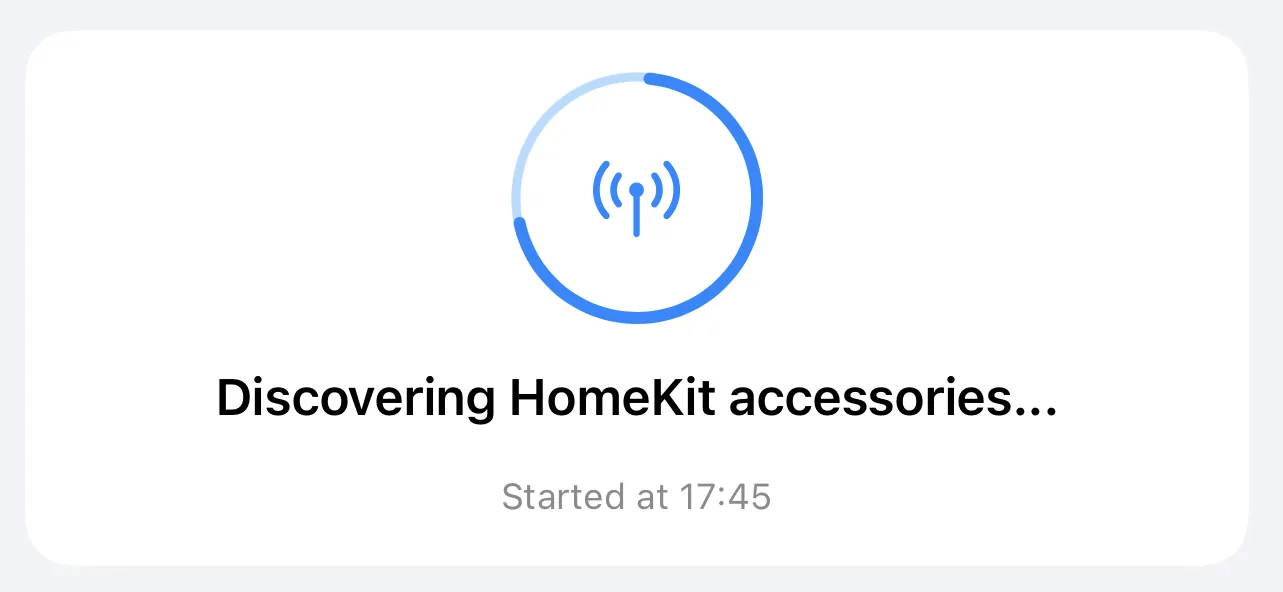
The large card at the top shows the current scan state.
The animated antenna in the center indicates whether a scan is running:
- Rotating rings + solid antenna: Scan in progress. The rings pulse while HomeMapper is actively discovering devices.
- Static ring + crossed-out antenna: Idle. No scan running.
Below the icon, a headline describes what HomeMapper is doing right now:
- "Ready to scan": No scan has finished yet
- "Checking HomeKit and network permissions...": Verifying access
- "Discovering HomeKit accessories...": HomeKit scan in progress
- "Scanning Home Assistant...": Reading your Home Assistant devices
- "Discovering devices...": IP Network and Thread discovery in progress
- "Reading Thread diagnostics… 3 of 12": Querying each Thread device for mesh details; the count ticks up as devices respond
- "Correlating devices from multiple sources...": Merging results into unified entries
- "Saving discovered devices to database...": Writing results to local storage
- "Scan Complete": At least one scan has finished. After you cancel a scan, the screen goes back to showing your last finished scan.
A small caption below the status shows timing:
- During a scan: "Started at [time]"
- After a scan: "Last Scan Completed [date] [time]"
- With Places, before any scan of the selected Place has finished: "Never Scanned"
Protocol Discovery
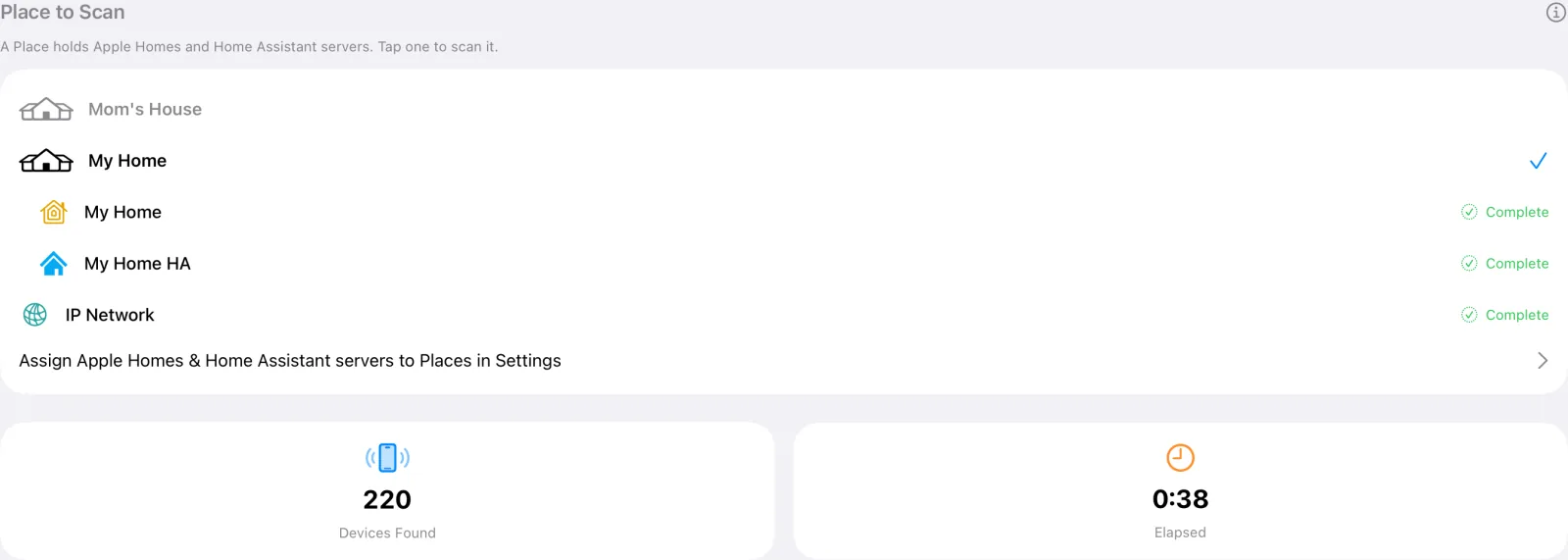
A card below the status lists what a scan reads, with each row's status on the right.
With HomeMapper Pro, the card is titled Scan. It has one row for each Apple Home and each Home Assistant server, named after the home or server, then an IP Network row (teal icon). A HomeKit row (amber icon) also appears when no Apple Home is listed and HomeKit permission is off, so you can see HomeKit isn't working. When Settings has Places, Homes & Rooms, the card is titled Place to Scan, lists your Places with the selected Place's homes under it (see Place to Scan below), and ends with Assign Apple Homes & Home Assistant servers to Places in Settings, which opens that screen. A selected Place with no homes in it shows "No homes yet".
On Free, the card is titled Discovery. It lists HomeKit (amber icon), then Home Assistant and IP Network with a Pro label. Tap either of those to see HomeMapper Pro.
On the right, each protocol shows one of five states:
- Gray dot: Waiting. This source hasn't started scanning yet.
- Gray minus: Disabled. This source is turned off in Settings.
- Rotating spinner: Scanning. Actively searching for devices.
- Green checkmark: Complete. Scanning finished for this source.
- Red exclamation mark: Error. Something went wrong (see error section below).
Matter and Thread don't have their own scan rows; their devices appear as the HomeKit and IP Network scans finish. Both still appear as protocol badges on your devices.
Scan Stats
Two stat cards side by side below the protocol section:
The first card counts the unique devices discovered. Its title changes with scan state:
- During scan: "Scanning" with a spinner
- After scan: "Devices Found" with the final count
- Never scanned: "Never Scanned" with a dash (—)
With Places, the card always reads "Devices Found" with the number of devices in the selected Place, even before that Place has been scanned. "Never Scanned" then shows as the time under the status instead.
Elapsed shows how long the current or most recent scan has been running, formatted as minutes:seconds (e.g., "1:24").
Error Section
Only appears when errors occurred during the scan.
A banner with a yellow warning icon shows how many errors occurred, such as "2 Errors", or "1 Error" when there is only one. Tap to expand or collapse the error details.
Each error row shows:
- Yellow exclamation icon: Recoverable error (scan continued)
- Red X icon: Non-recoverable error (protocol scan stopped)
- Source: Which protocol had the error (e.g., "HomeKit", "IP Network")
- Message: What went wrong
- Timestamp: When it happened
Common errors include permission denials, network timeouts, and HomeKit API failures.
Place to Scan
With HomeMapper Pro and more than one Place, a card lists your Places and checks the one the next scan runs at. Tap another Place to scan there instead, and the whole app follows. When you open the Scan screen on a network saved to a Place, HomeMapper selects that Place automatically. On a new network, Start Scan shows a list of Places to pick from. The ⓘ beside the card's title opens Places.
When you're on another Place's network, the Scan screen shows "You're not at <Place>," because a scan from there reads only that Place's Apple Home and Home Assistant. After a scan from away, the IP Network row reads "Not scanned from away". The time under the status can also show more lines, each when its own condition holds:
- "Last scan at <Place>:" with the date of the last scan made there, when the latest finished scan was from away
- "Never scanned at <Place>" when a scan of the Place has been tried but none has finished there
- "Last scan didn't finish:" with the date, when the latest scan was cancelled or failed, wherever it ran
Scan Button

A blue button with a play icon. Tap to begin scanning.
What happens when you tap Start Scan:
- HomeMapper checks permissions (HomeKit + Local Network)
- If permissions are granted, discovery sources start scanning
- Active protocol rows spin while scanning.
- When new devices stop appearing, the scan completes
- Scan results appear on the Devices and Rooms tabs.
While scanning, the button changes to a red "Cancel Scan" button. Cancelling stops all active discovery immediately. If you cancel before the status reads "Correlating devices from multiple sources...", nothing from the scan is saved and your device list keeps the results of your last finished scan. A cancel after that point can still save the devices this scan found.
If a Home Assistant server's sign-in has expired, Start Scan first shows Sign in to Home Assistant? Reconnect signs you in again and then starts the scan. Scan Anyway scans without that server.
On a large network, a banner under the status reads "Larger network detected — IP scanning may take up to 3 minutes." The IP Network part of the scan takes longer there; the scan isn't stuck.
Permissions Required Sheet
If HomeMapper detects missing permissions when you try to scan, a sheet appears showing which permissions are denied. Each denied permission has a red X, an explanation of what it enables, and an "Open Settings" link to grant access in iOS Settings. A "Check Again" button re-checks permissions after you've granted them.
With HomeMapper Pro and Places, Local Network permission off doesn't stop the scan of a Place that has an Apple Home or Home Assistant. HomeMapper scans the selected Place from away instead, reading only its Apple Home and Home Assistant. A Place with neither can't be scanned while Local Network permission is off.
Tips
On first use, a tip popover appears on the Start Scan button:
- "Discover Your Devices": "Tap Start Scan to find HomeKit, Home Assistant, and IP Network devices on your local network."
- Dismisses after first scan or when you tap "No Tips"